<h3>iOS application วิà¸à¸µà¸ªà¸£à¹à¸²à¸à¹à¸à¸¥à¹ .pem สำหรัà¸à¹à¸à¹à¸à¸²à¸ push notification à¸à¸ iOS application</h3>
<p><amp-youtube layout="responsive" width="958" height="539" data-videoid="FV0Fv64Qk80" title="Unity C# à¸à¸à¸ªà¸à¸à¸à¸²à¸£à¸ªà¹à¸ iOS Push notification"><a placeholder href="https://www.youtube.com/watch?v=FV0Fv64Qk80"><img src="https://i.ytimg.com/vi/FV0Fv64Qk80/hqdefault.jpg" layout="fill" object-fit="cover" alt="Unity C# à¸à¸à¸ªà¸à¸à¸à¸²à¸£à¸ªà¹à¸ iOS Push notification"></a></amp-youtube></p>
<p>1. login à¹à¸à¹à¸²à¹à¸à¸à¸µà¹ https://developer.apple.com/account/ios/certificate/</p>
<p>2. à¹à¸à¸à¸µà¹à¸«à¸±à¸§à¸à¹à¸ Identifiers à¹à¸à¸·à¹à¸à¸ªà¸£à¹à¸²à¸ id à¹à¸à¹à¸à¹à¸²à¸«à¸²à¸à¸¡à¸µà¹à¸à¸à¸µà¸à¸¢à¸¹à¹à¹à¸¥à¹à¸§à¸à¹à¸à¹à¸²à¸¡à¸à¸±à¹à¸à¸à¸à¸à¸à¸µà¹à¹à¸à¹à¸à¹à¹à¸¥à¸¢<br />
à¹à¸à¸à¸²à¸£à¸ªà¸£à¹à¸²à¸ id à¸à¸à¸à¹à¸à¸ à¸à¸´à¹à¸à¸à¸¹à¸à¸à¸µà¹ push notification<br />
<img src="http://codebee.co.th/labs/wp-content/uploads/2016/05/วิà¸à¸µà¸ªà¸£à¹à¸²à¸à¹à¸à¸¥à¹-pem-สำหรัà¸-push-notification-1.png" alt="วิà¸à¸µà¸ªà¸£à¹à¸²à¸à¹à¸à¸¥à¹ .pem สำหรัà¸à¹à¸à¹à¸à¸²à¸ push notification à¸à¸ iOS application" /><br />
<!--more--></p>
<p><img src="http://codebee.co.th/labs/wp-content/uploads/2016/05/วิà¸à¸µà¸ªà¸£à¹à¸²à¸à¹à¸à¸¥à¹-pem-สำหรัà¸-push-notification-2.png" alt="วิà¸à¸µà¸ªà¸£à¹à¸²à¸à¹à¸à¸¥à¹ .pem สำหรัà¸à¹à¸à¹à¸à¸²à¸ push notification à¸à¸ iOS application" /></p>
<p>3. หลัà¸à¸à¸²à¸à¹à¸à¹ id à¹à¸¥à¹à¸§à¹à¸«à¹à¹à¸à¸ªà¸£à¹à¸²à¸ certificate à¹à¸à¸¢à¸à¸à¹à¸à¸£à¸·à¹à¸à¸à¸«à¸¡à¸²à¸¢à¸à¸§à¸à¸à¸µà¹à¹à¸¡à¸à¸¹à¸à¸µà¹</p>
<p><img src="http://codebee.co.th/labs/wp-content/uploads/2016/05/วิà¸à¸µà¸ªà¸£à¹à¸²à¸à¹à¸à¸¥à¹-pem-สำหรัà¸-push-notification-0.png" alt="วิà¸à¸µà¸ªà¸£à¹à¸²à¸à¹à¸à¸¥à¹ .pem สำหรัà¸à¹à¸à¹à¸à¸²à¸ push notification à¸à¸ iOS application" /></p>
<p>&#8211; หาà¸à¸à¹à¸à¸à¸à¸²à¸£à¹à¸à¹à¸à¸²à¸à¹à¸à¸ development à¹à¸«à¹à¹à¸¥à¸·à¸à¸ Apple Push Notification service SSL (Sandbox)<br />
&#8211; หาà¸à¸à¹à¸à¸à¸à¸²à¸£à¹à¸à¹à¸à¸²à¸à¹à¸à¸ production à¹à¸«à¹à¹à¸¥à¸·à¸à¸ Apple Push Notification service SSL (Sandbox &; Production)<br />
à¸à¸²à¸à¸à¸±à¹à¸à¹à¸«à¹à¹à¸¥à¸·à¸à¸ id à¸à¸µà¹à¹à¸£à¸²à¹à¸à¸´à¹à¸à¸ªà¸£à¹à¸²à¸à¹à¸§à¹à¸à¹à¸à¸à¸«à¸à¹à¸²à¸à¸µà¹à¸à¸·à¸ com.codebee.testpush à¹à¸¥à¸°à¸à¸ continue<br />
<img src="http://codebee.co.th/labs/wp-content/uploads/2016/05/วิà¸à¸µà¸ªà¸£à¹à¸²à¸à¹à¸à¸¥à¹-pem-สำหรัà¸-push-notification-9.png" alt="วิà¸à¸µà¸ªà¸£à¹à¸²à¸à¹à¸à¸¥à¹ .pem สำหรัà¸à¹à¸à¹à¸à¸²à¸ push notification à¸à¸ iOS application" /></p>
<p>4. มาà¸à¸¶à¸à¸à¸±à¹à¸à¸à¸à¸à¸à¸µà¹à¸à¸²à¸ apple à¸à¸°à¹à¸«à¹à¹à¸£à¸²à¸ªà¸£à¹à¸²à¸à¹à¸à¸¥à¹ .certSigningRequest à¹à¸¥à¸°à¸à¸±à¸à¹à¸«à¸¥à¸à¸à¸¶à¹à¸à¹à¸<br />
<img src="http://codebee.co.th/labs/wp-content/uploads/2016/05/วิà¸à¸µà¸ªà¸£à¹à¸²à¸à¹à¸à¸¥à¹-pem-สำหรัà¸-push-notification-3.png" alt="วิà¸à¸µà¸ªà¸£à¹à¸²à¸à¹à¸à¸¥à¹ .pem สำหรัà¸à¹à¸à¹à¸à¸²à¸ push notification à¸à¸ iOS application" /></p>
<p>วิà¸à¸µà¸ªà¸£à¹à¸²à¸à¹à¸à¸¥à¹ .certSigningRequest à¸à¹à¸à¸³à¸à¸²à¸¡à¸à¸±à¹à¸à¸à¸à¸à¸à¹à¸à¹à¸à¸à¸µà¹à¸à¸£à¸±à¸<br />
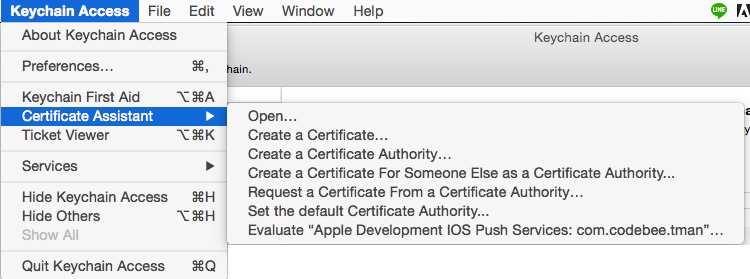
&#8211; à¹à¸à¸´à¸à¹à¸à¸£à¹à¸à¸£à¸¡ keychain access<br />
&#8211; à¹à¸à¸à¸µà¹à¹à¸¡à¸à¸¹ Keychain Access->;Certificate Assistant<br />
&#8211; à¹à¸¥à¸·à¸à¸à¹à¸à¸à¸µà¹ Request a certificate from Certificate Authority<br />
<img src="http://codebee.co.th/labs/wp-content/uploads/2016/05/วิà¸à¸µà¸ªà¸£à¹à¸²à¸à¹à¸à¸¥à¹-pem-สำหรัà¸-push-notification-4.png" alt="วิà¸à¸µà¸ªà¸£à¹à¸²à¸à¹à¸à¸¥à¹ .pem สำหรัà¸à¹à¸à¹à¸à¸²à¸ push notification à¸à¸ iOS application" /></p>
<p>&#8211; à¸à¸£à¸à¸à¸£à¸²à¸¢à¸¥à¸°à¹à¸à¸µà¸¢à¸ à¸à¸µà¹à¸¡à¸¥ à¸à¸·à¹à¸ à¹à¸¥à¸°à¹à¸¥à¸·à¸à¸ saved to disk à¸à¸ continue à¹à¸£à¸²à¸à¸°à¹à¸à¹à¹à¸à¸¥à¹ .certSigningRequest<br />
<img src="http://codebee.co.th/labs/wp-content/uploads/2016/05/วิà¸à¸µà¸ªà¸£à¹à¸²à¸à¹à¸à¸¥à¹-pem-สำหรัà¸-push-notification-5.png" alt="วิà¸à¸µà¸ªà¸£à¹à¸²à¸à¹à¸à¸¥à¹ .pem สำหรัà¸à¹à¸à¹à¸à¸²à¸ push notification à¸à¸ iOS application" /></p>
<p>5. หลัà¸à¸à¸²à¸à¹à¸à¹à¹à¸à¸¥à¹ .certSigningRequest à¹à¸«à¹à¸à¸¥à¸±à¸à¸¡à¸²à¸à¸µà¹à¸«à¸à¹à¸² upload à¸à¸à¸ apple à¸à¸à¹à¸¥à¸·à¸à¸à¹à¸à¸¥à¹ .certSigningRequest à¸à¸µà¹à¹à¸£à¸²à¸ªà¸£à¹à¸²à¸à¹à¸§à¹à¹à¸¥à¸°à¸à¸±à¸à¹à¸«à¸¥à¸ à¸à¸ continue à¹à¸¥à¸°à¸à¸à¸à¸²à¸§à¸à¹à¹à¸«à¸¥à¸à¹à¸à¸¥à¹ .cer<br />
<img src="http://codebee.co.th/labs/wp-content/uploads/2016/05/วิà¸à¸µà¸ªà¸£à¹à¸²à¸à¹à¸à¸¥à¹-pem-สำหรัà¸-push-notification-6.png" alt="วิà¸à¸µà¸ªà¸£à¹à¸²à¸à¹à¸à¸¥à¹ .pem สำหรัà¸à¹à¸à¹à¸à¸²à¸ push notification à¸à¸ iOS application" /></p>
<p>6. หลัà¸à¸à¸²à¸à¸à¸à¸à¸±à¹à¸à¸à¸à¸à¸à¸µà¹ 5 à¹à¸£à¸²à¸à¸°à¹à¸à¹à¸à¸¥à¹ aps_development.cer มาà¹à¸«à¹à¸à¸±à¸à¹à¸à¸´à¹à¸¥à¸à¸¥à¸´à¸à¸à¸µà¹à¹à¸à¸¥à¹à¹à¸à¸·à¹à¸ install à¹à¸ keychain</p>
<p>7. à¹à¸à¸´à¸à¹à¸à¸£à¹à¸à¸£à¸¡ keychain access à¹à¸¥à¸·à¸à¸à¹à¸à¸à¸µà¹ login à¹à¸¥à¸° category à¹à¸à¹à¸ Certificate<br />
หา Certificate à¸à¸µà¹à¸à¸£à¸à¸à¸±à¸à¸à¸à¸à¹à¸£à¸²</p>
<pre class="lang:tex decode:true ">Apple Development iOS Push Service:com.codebee.testpush</pre>
<p>Apple Development iOS Push Service:com.codebee.testpush หรืà¸à¹à¸à¸à¸µà¸à¸µà¹à¸à¹à¸²à¸à¹à¸à¹à¸à¸à¸à¸ªà¸£à¹à¸²à¸</p>
<p>8. à¸à¸²à¸à¸à¸±à¹à¸à¸à¸ expand à¹à¸¥à¸°à¹à¸¥à¸·à¸à¸à¸à¸±à¹à¸ 2 à¹à¸à¹à¸à¸¡ à¸à¸ Export 2 items à¹à¸à¸·à¹à¸ export à¹à¸à¸¥à¹ .p12<br />
à¸à¸³à¸à¸²à¸£à¹à¸à¸à¸à¸·à¹à¸à¹à¸à¸¥à¹à¹à¸§à¹à¸à¸µà¹ desktop à¸à¸±à¹à¸à¸à¸·à¹à¸à¸§à¹à¸² pushcert.p12<br />
à¹à¸à¸à¸±à¹à¸à¸à¸à¸à¸à¸µà¹ à¸à¸°à¸¡à¸µà¹à¸«à¹à¹à¸ªà¹ password à¸à¹à¸§à¸¢ à¹à¸à¹à¹à¸£à¸²à¸à¸°à¹à¸¡à¹à¹à¸ªà¹à¸à¹à¹à¸à¹ สามารà¸à¸à¹à¸²à¸¡à¹à¸à¹</p>
<p><img src="http://codebee.co.th/labs/wp-content/uploads/2016/05/วิà¸à¸µà¸ªà¸£à¹à¸²à¸à¹à¸à¸¥à¹-pem-สำหรัà¸-push-notification-7.png" alt="วิà¸à¸µà¸ªà¸£à¹à¸²à¸à¹à¸à¸¥à¹ .pem สำหรัà¸à¹à¸à¹à¸à¸²à¸ push notification à¸à¸ iOS application" /></p>
<p>9. à¸à¸²à¸à¸à¸±à¹à¸à¹à¸à¸´à¸à¹à¸à¸£à¹à¸à¸£à¸¡ Terminal à¸à¸´à¸¡à¸à¹à¸à¸³à¸ªà¸±à¹à¸à¸à¸±à¸à¸à¸µà¹à¸à¸£à¸±à¸</p>
<pre class="theme:terminal lang:tex decode:true ">cd Desktop 
openssl pkcs12 -in pushcert.p12 -out pushcert.pem -nodes -clcerts</pre>
<p>à¹à¸à¹à¸à¸à¸±à¸à¹à¸£à¸µà¸¢à¸à¸£à¹à¸à¸¢à¸à¸£à¸±à¸ à¸à¹à¸²à¸à¸à¹à¸à¸°à¹à¸«à¹à¸à¹à¸à¸¥à¹ pushcert.pem à¸à¸¢à¸¹à¹à¸à¸ desktop à¹à¸à¸£à¸·à¹à¸à¸à¸à¸à¸à¸à¹à¸²à¸<br />
à¸à¸±à¹à¸à¸à¸à¸à¸à¹à¸à¹à¸à¸à¹à¸à¸°à¹à¸à¹à¸à¸à¸²à¸£à¸à¸³à¹à¸à¸¥à¹ .pem à¹à¸à¹à¸à¹à¸à¸²à¸à¸£à¹à¸§à¸¡à¸à¸±à¸ php หรืà¸à¸ าษาà¸à¸·à¹à¸ ๠à¹à¸à¸à¸²à¸£à¸ªà¹à¸ push notification</p>

iOS application วิธีสร้างไฟล์ .pem สำหรับใช้งาน push notification บน iOS